AI Pricing Integration Guide
Botsi AI Pricing Model helps you dynamically select and display the most effective paywall for different user segments, aiming to enhance conversion rates. This guide walks you through the prerequisites and configuration steps to get your AI Pricing Model up and running.
Configuration Requirements
Before the AI pricing model configuration, at least one Application should be configured in Botsi.
To start configuring the AI Pricing Model, you need to have several components already set up in the Botsi platform. Please ensure you have completed the following configurations.
Follow the guides below for detailed instructions on setting up each requirement:
AI Pricing Model Configuration
Once all the prerequisites are met, you can proceed with configuring the AI Pricing Model itself. To configure your model, follow these steps:
-
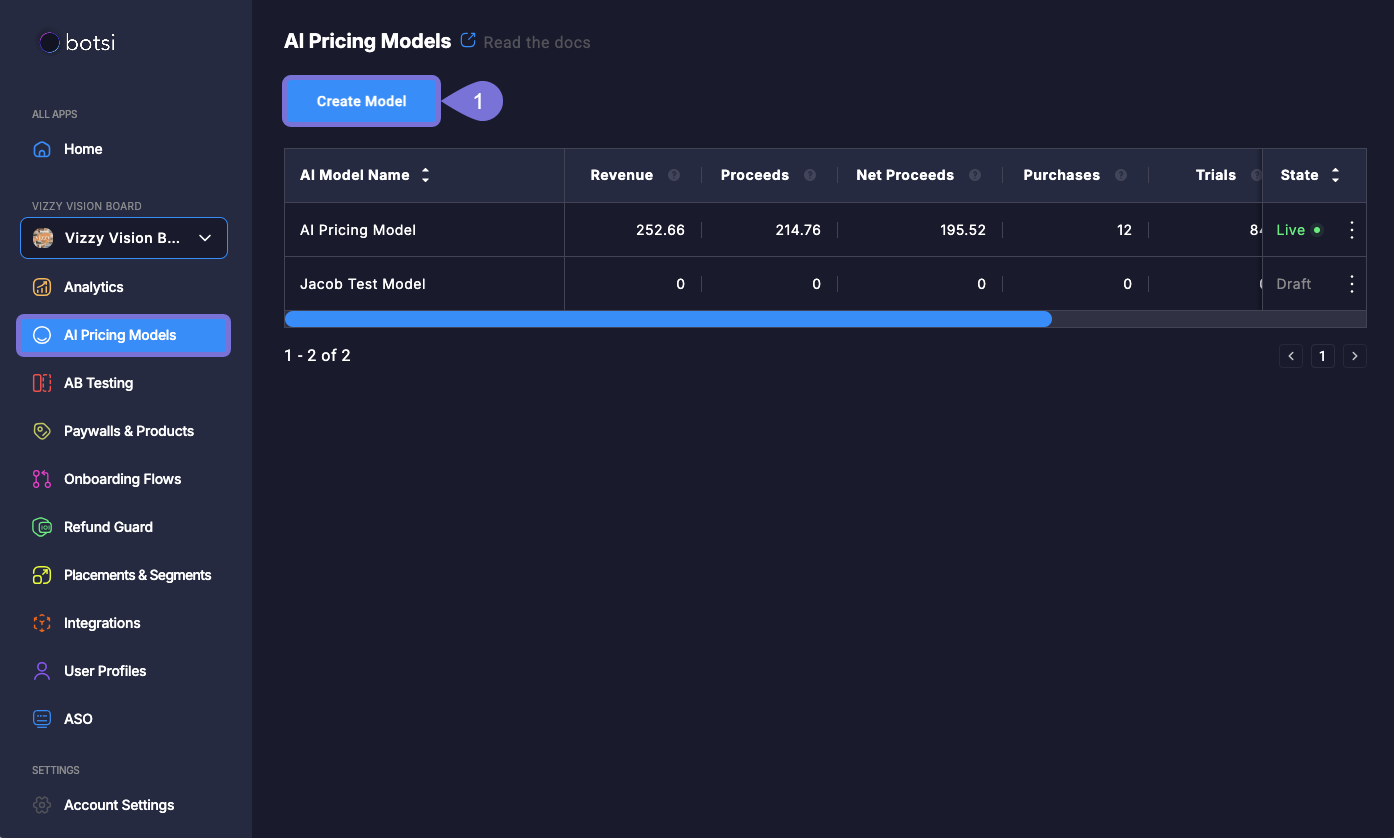
Navigate to the AI Pricing Models page and click the Create Model button. This will launch the configuration form.
If you don’t have any models yet, you will see an informational page with a brief overview of the feature. To begin the configuration process, click the Get Started button.
-
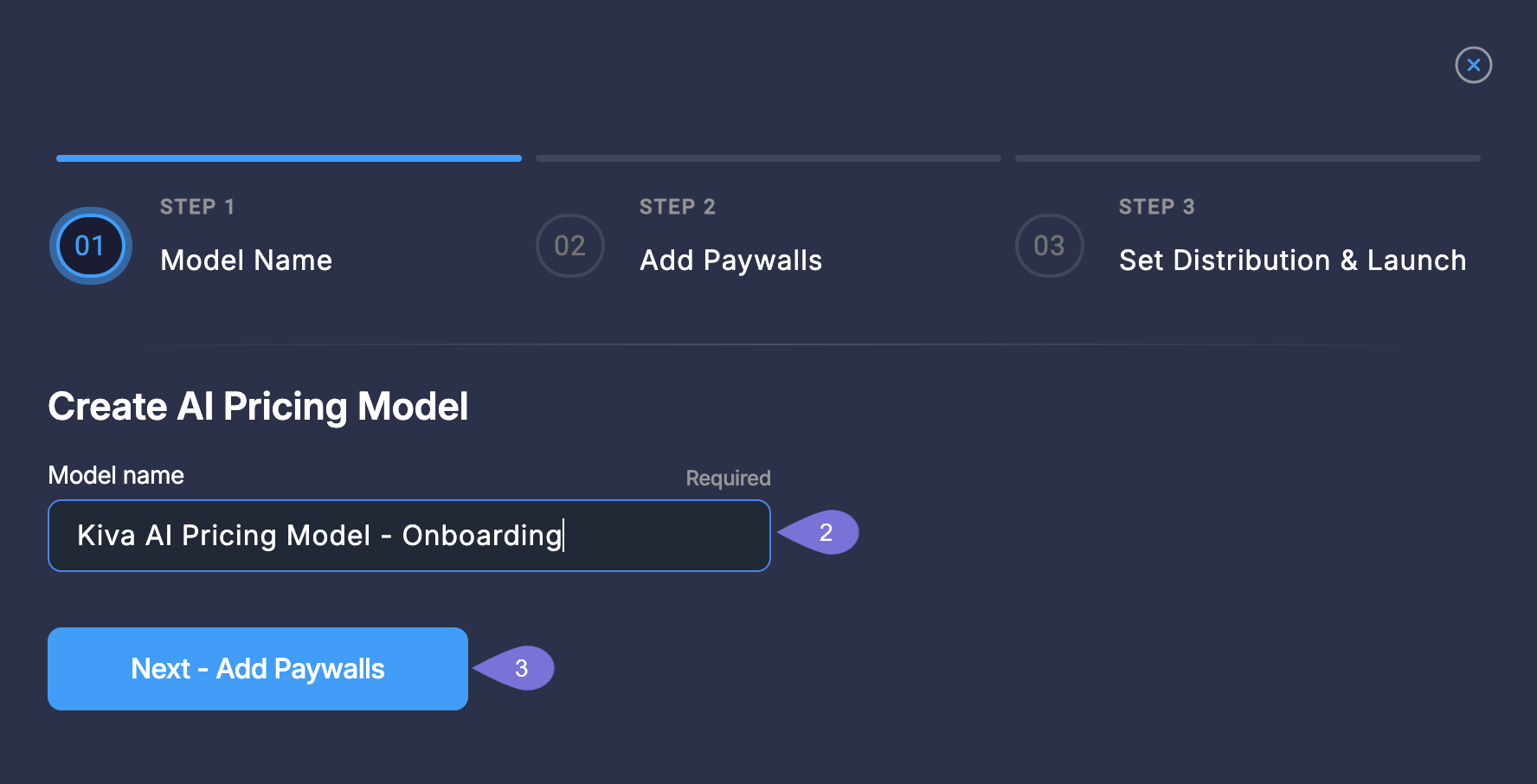
Enter a descriptive name for your model in Step 1. This will help you identify it later.
-
Click Next - Add Paywalls to proceed to Step 2.
-
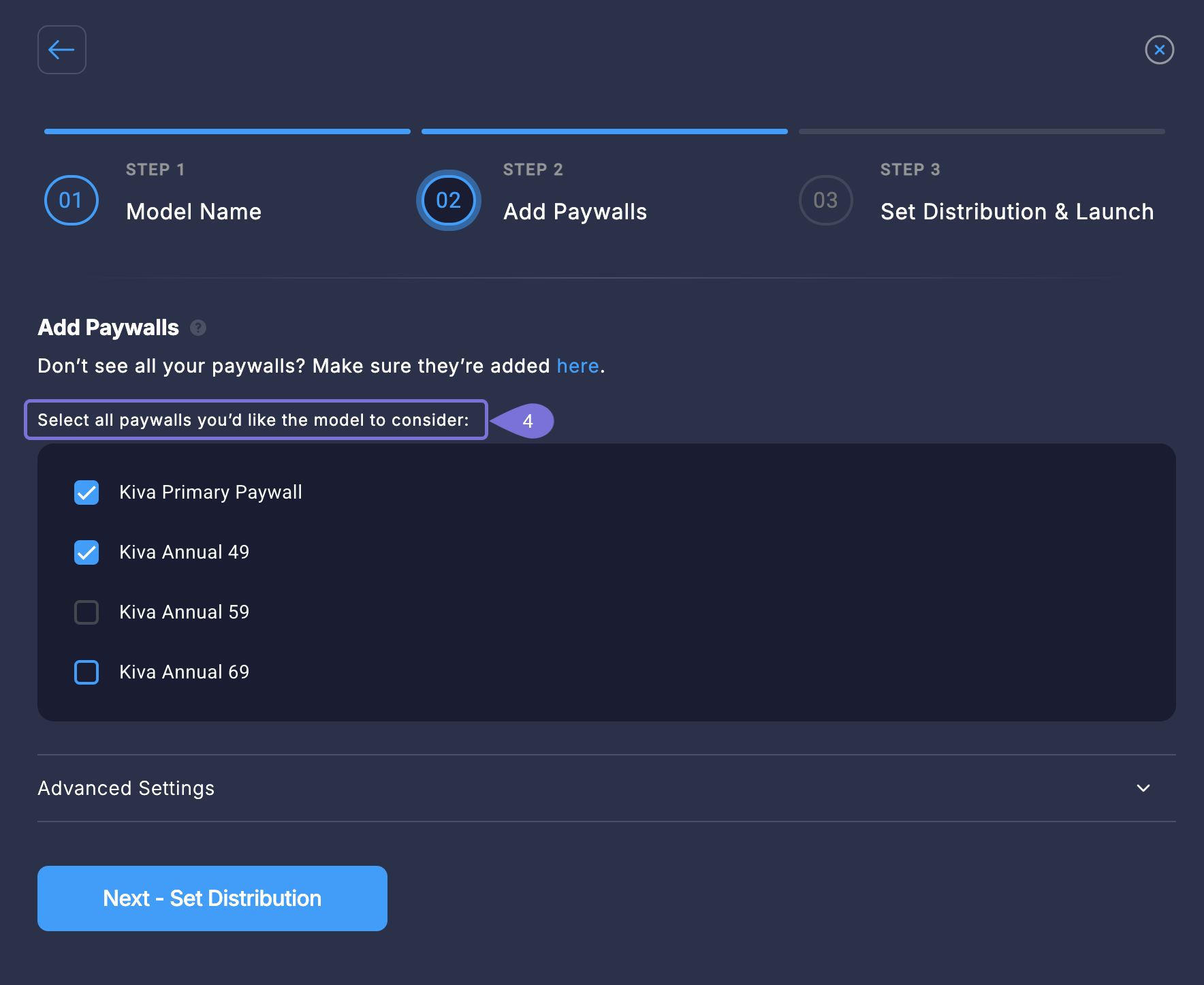
In Step2, select all the paywalls that will be part of the prediction model. The model will analyze the performance of these paywalls to find the best option for each user.
-
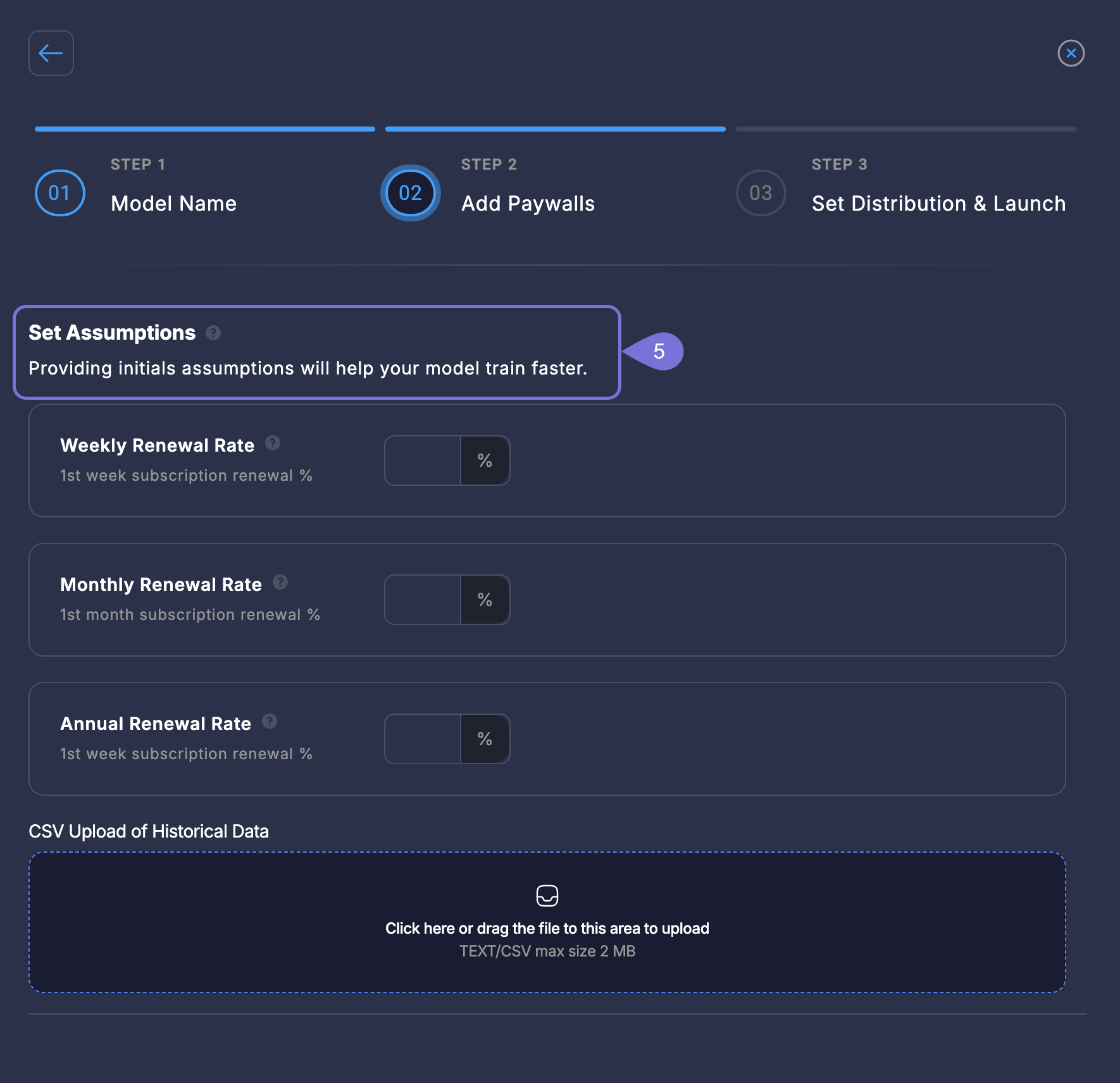
Set Assumptions for Faster Training. Under Advanced Settings, you can provide initial assumptions or upload historical data. This information helps the model train faster by giving it a baseline. This step is recommended but not required. After setting these, click Next - Set Distribution.
-
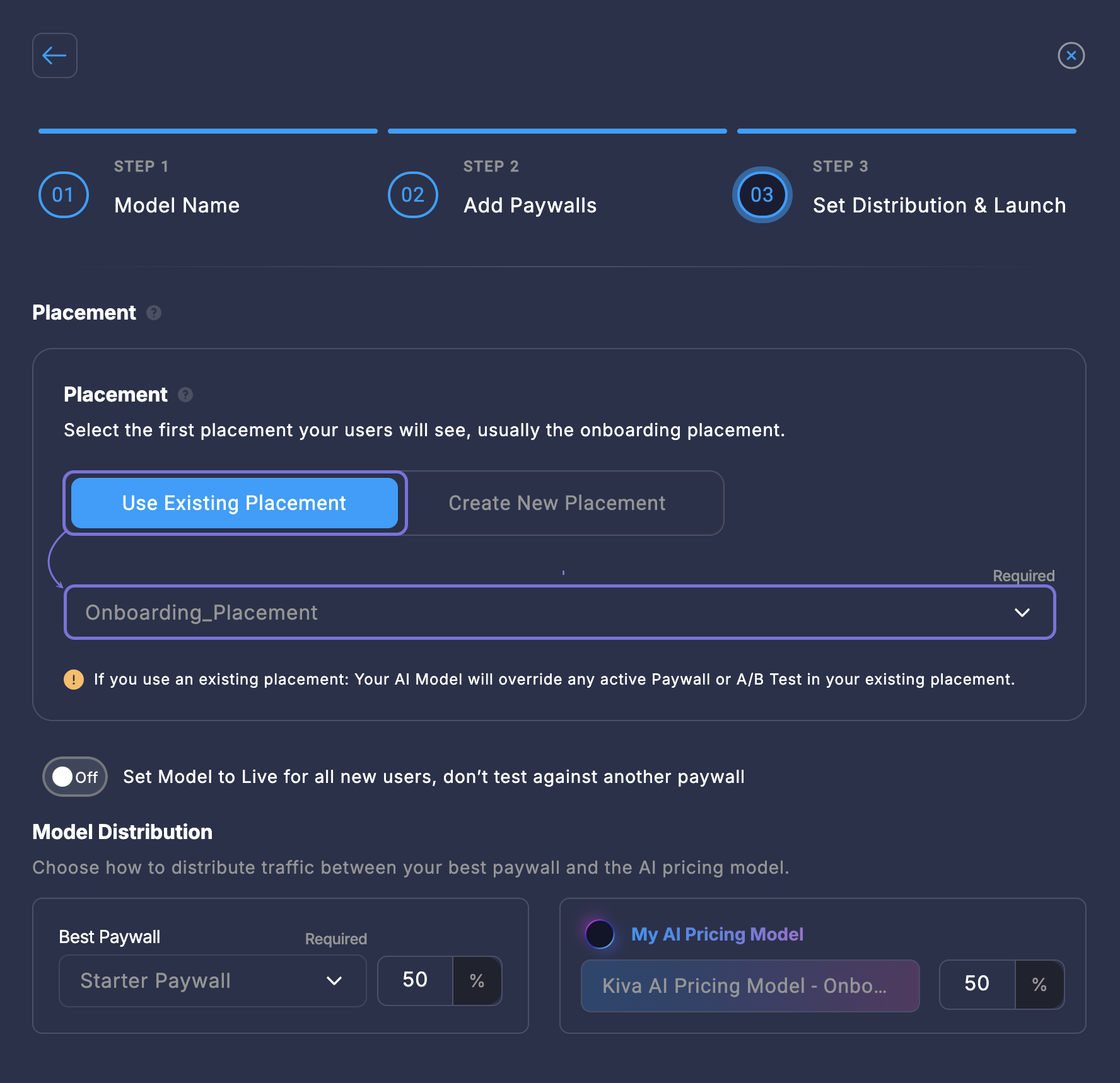
In Step 3, Set Distribution and Launch your model. This is the final configuration step where you define how the model will be shown to your users. To do so, follow these steps:
- Use an existing placement: Recommended if you already have a Botsi placement and either do not want or cannot make changes in your app. In this case, select an existing placement.
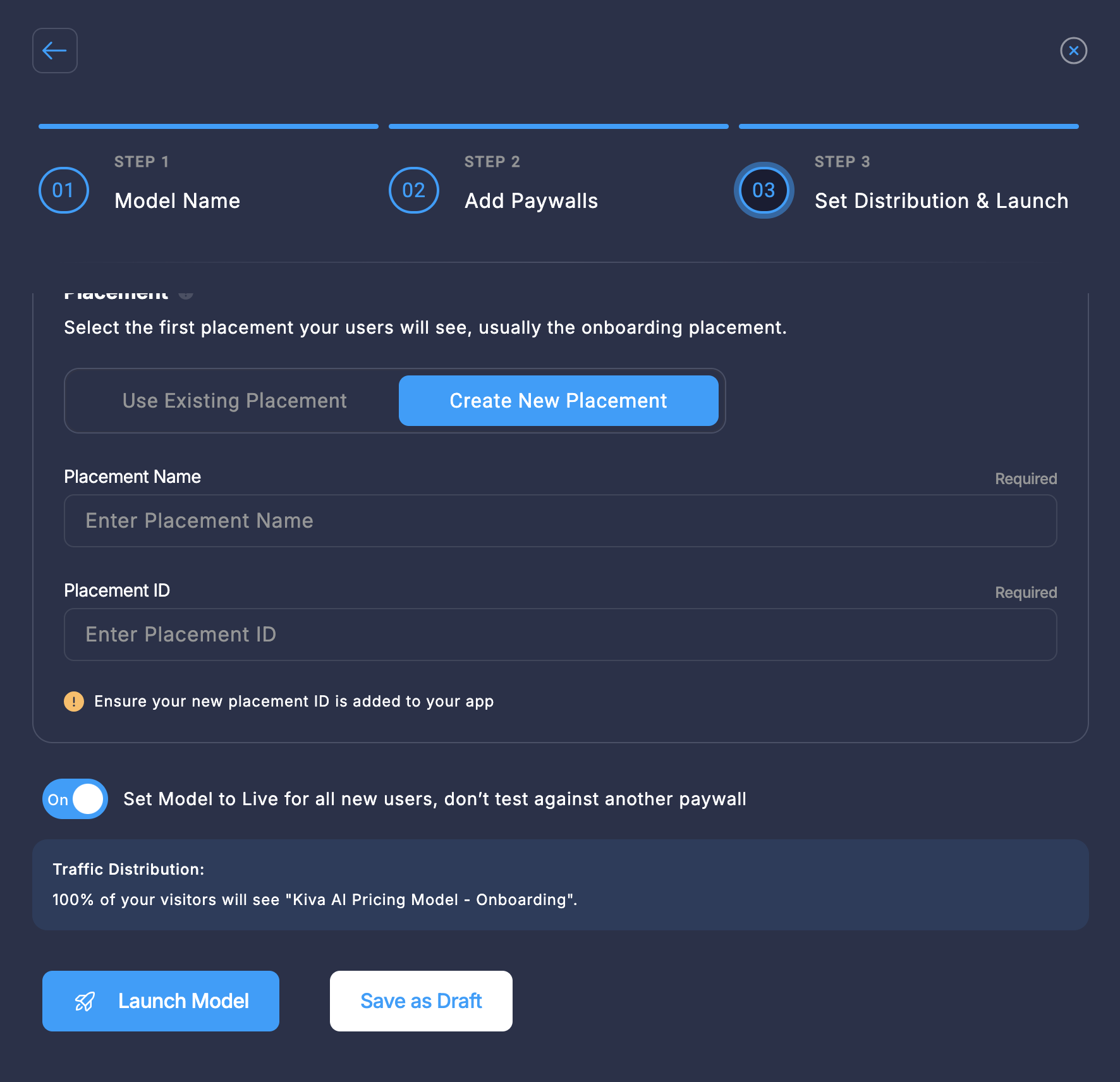
Create a new placementIf no suitable placement exists, or if you prefer to configure one specifically for this setup, select Create New and provide a name and ID for it.
- Select Best Paywall. It will be used as a comparison paywall. Also, Best Paywall is used as a fallback if the prediction API does not respond.
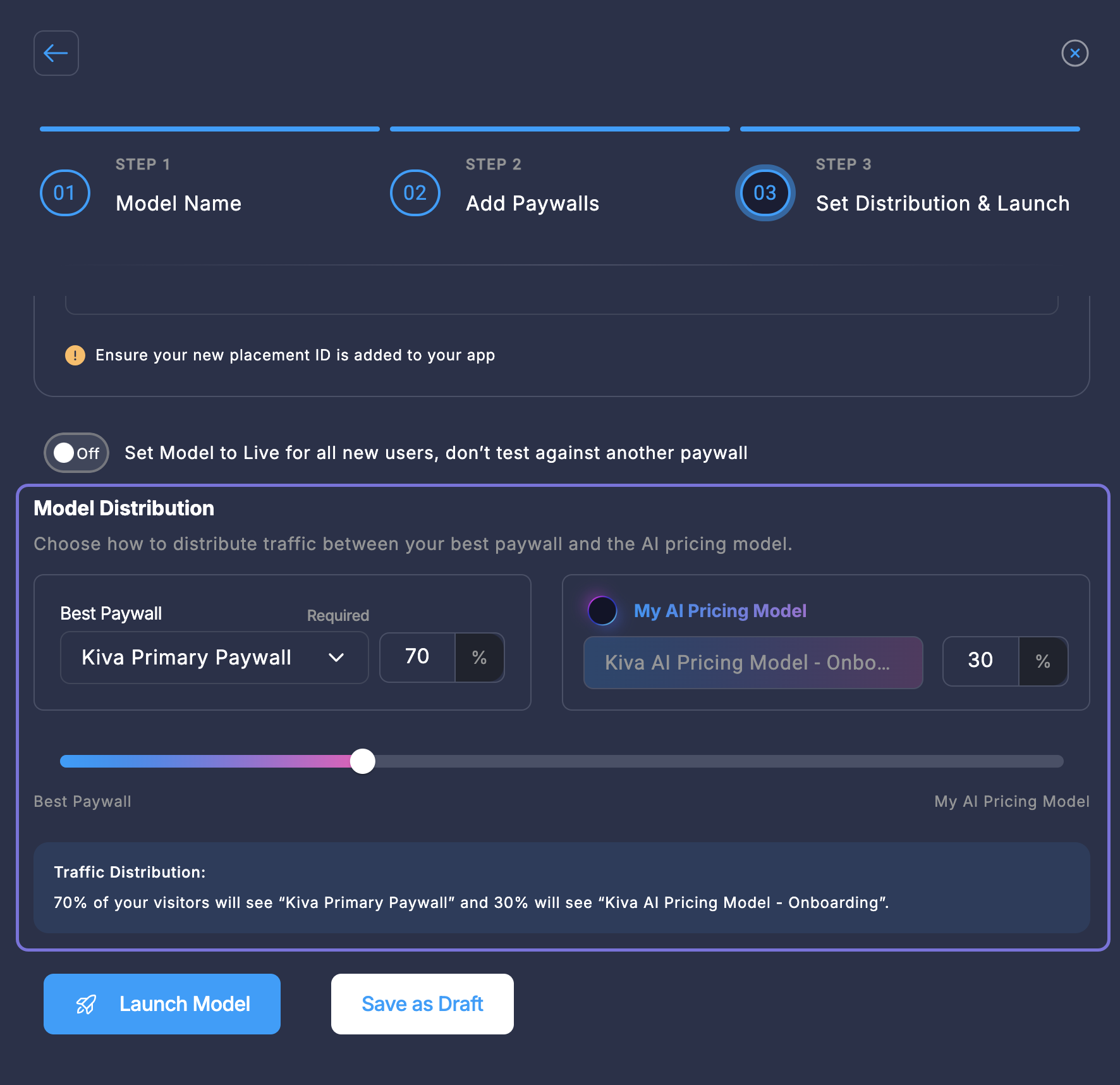
- Set distribution: Use the slider to set the distribution percentage between the Best Paywall and the AI Pricing Model. The set percentage dictates the frequency with which each paywall—Best or Predicted (AI)—will be displayed. In the example shown below, 70% of users see the Best Paywall, and 30% see the AI-powered one.
 Activate the Live Toggle
The Set Model to Live for all new users, don’t test against another paywall toggle automatically sets the traffic distribution to 100% for the AI Pricing Model.
-
Once your configuration is complete, you have two options:
-
Launch Model: Activates the model immediately according to your settings.
-
Save as Draft: Saves your configuration to be launched later.
Post-Launch: Editing and Managing Your Model
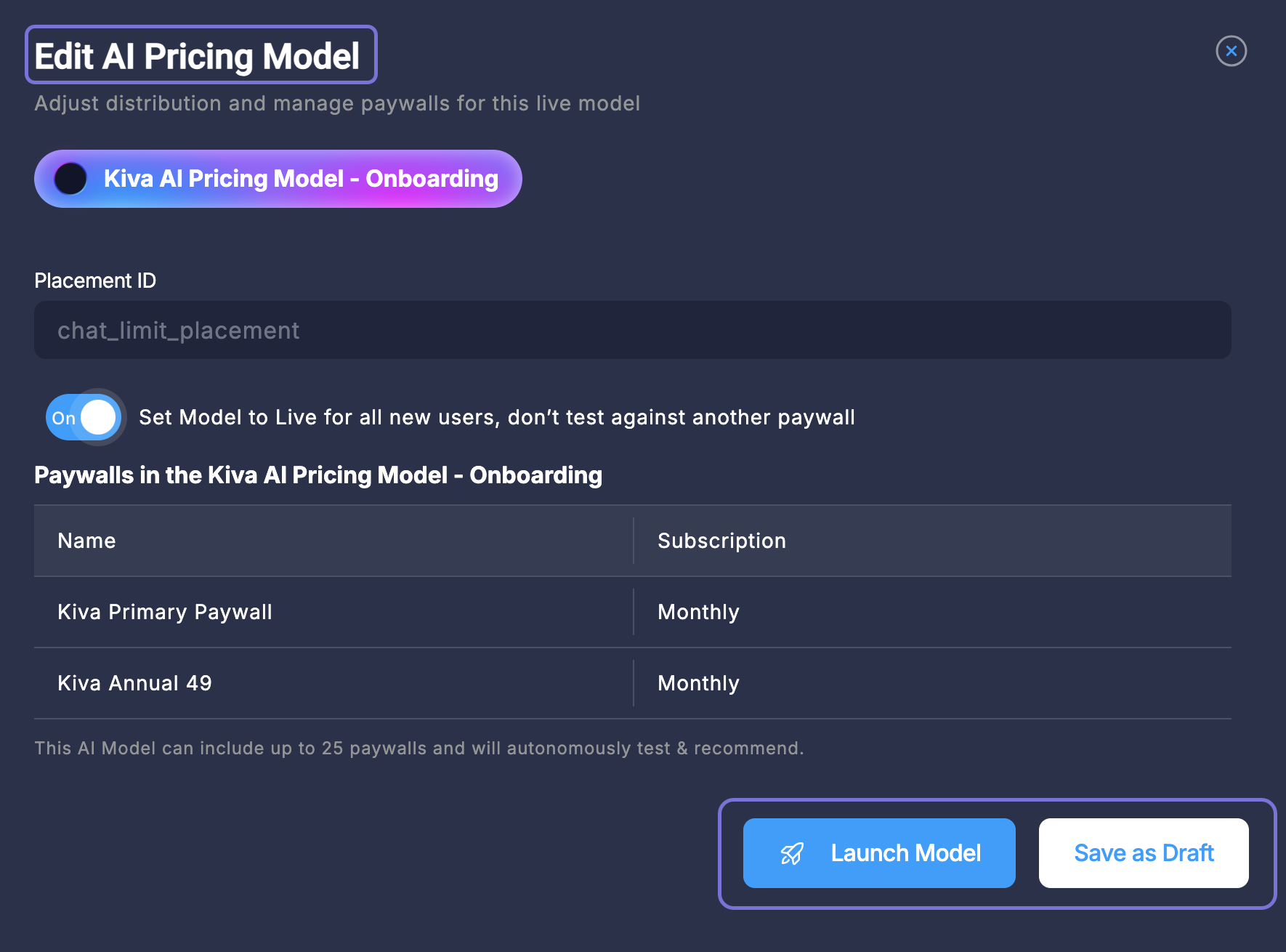
After your model has been saved or launched, you can select it from the AI Pricing Models list to view and manage its settings. The Edit AI Pricing Model screen allows you to adjust distribution, manage paywalls, and view the model's details at any time.
See also
After completing these preparation steps, you are ready to integrate with our API.